How to Sign On to the XtreamService Application Using dlrSecured Identity Management for the First Time
After an employee has been enrolled in dlrSecured Identity Management, the employee must sign on to the XtreamService application using dlrSecured.
-
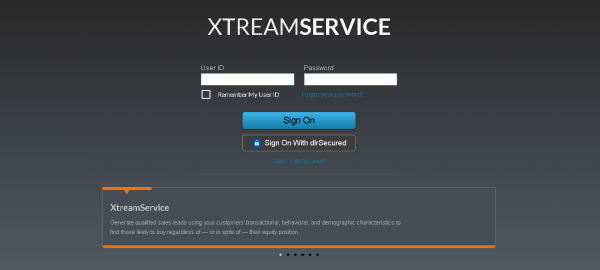
Access the XtreamService web site.
-
Enter your XtreamService User ID in the User ID field, and then click the Sign On With dlrSecured button.
-or-
Enter your dlrSecured Email address in the User ID field.
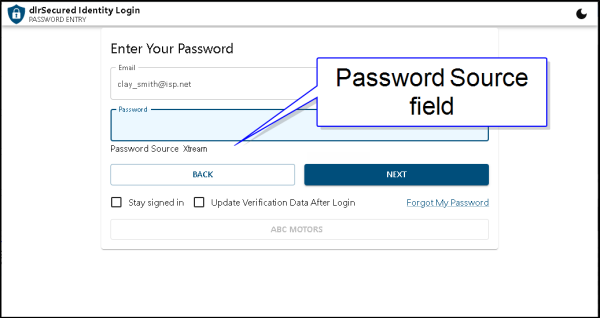
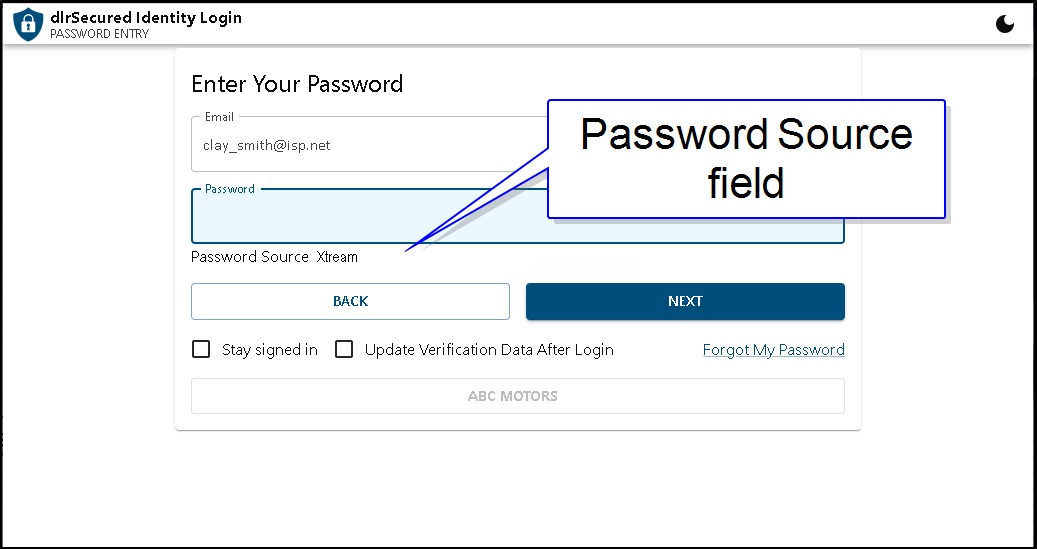
The dlrSecured Identity Management web site automatically displays. The Email address linked to dlrSecured is entered in the Email field on the Enter Your Password screen.
-
In the Password field, enter
Note - If you do not remember your password, click the Forgot My Password link to reset your password.
-
Click the NEXT button.
If the strength of your password is not rated as "Strong" in dlrSecured, the Change Your Password screen displays. Proceed to step 5.
Otherwise, the Enter Your Verification Code screen displays. Proceed to step 8.
-
Enter a new password in the New Password field.
The strength of your password displays.
Note - The new password must be rated as "Strong". Refer to Creating a Strong Password for more information about creating a strong password to use with dlrSecured.
-
Re-enter the new password in the Repeat New Password field.
-
Click the NEXT button.
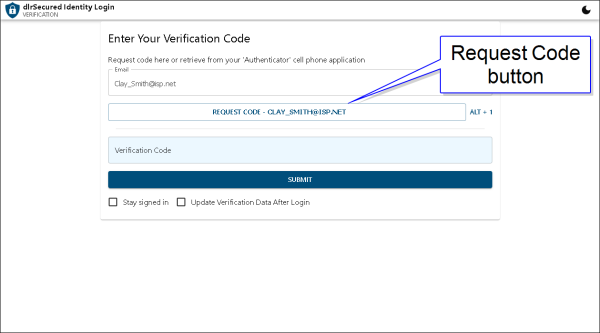
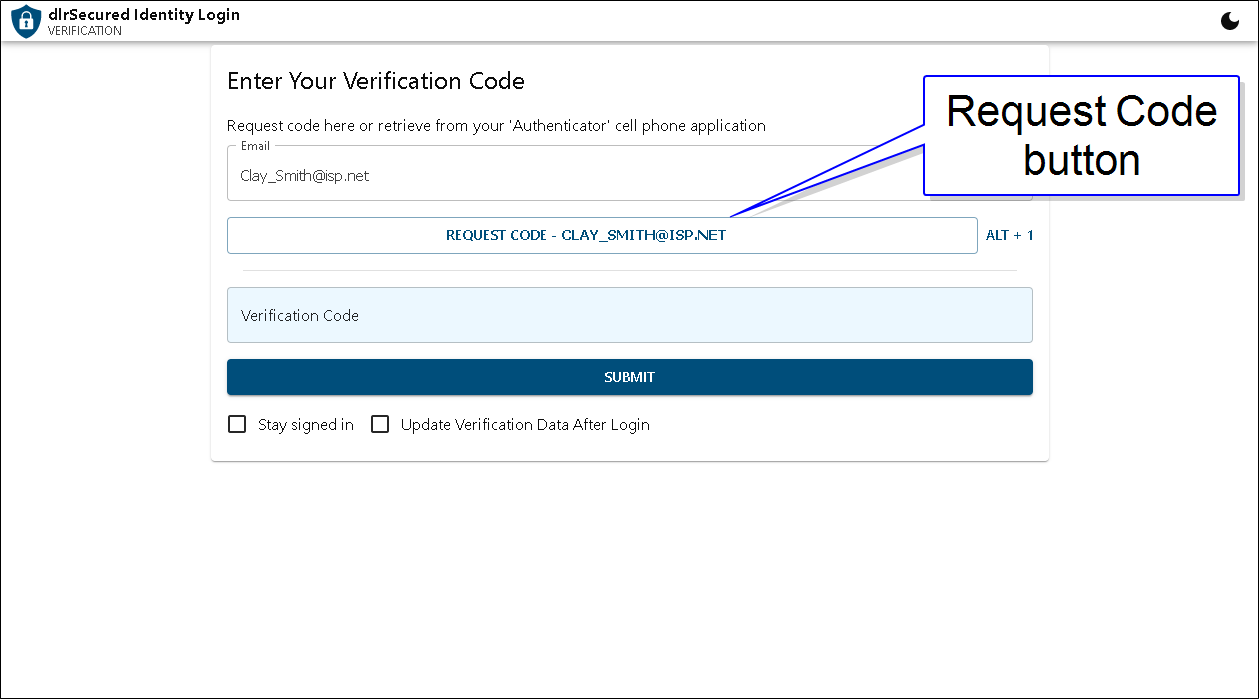
The Enter Your Verification Code screen displays.
-
Click the REQUEST CODE button.
An Email message containing a verification code is sent to the dlrSecured Email address linked to your record.
-
In the Verification Code field, enter the code
Note - The verification code is only valid for 10 minutes. If the code is not entered in the Verification Code field within 10 minutes of the code being sent, a new code must be requested to sign on.
-
Click the SUBMIT button.
The sign-on process is complete, and the XtreamService application displays.
Advanced Topics
Creating a Strong Password
Character classes are used to determine the strength of a password. To create a more secure password, a mix of character classes (upper case, lower case, numerals, and special characters) should be used. Use the following guidelines when creating a password to use with dlrSecured.
-
Passwords must be at least 15 characters if 2 character classes are used.
-
Passwords must be at least 30 characters if only 1 character class is used.
-
Passwords must be at least 8 characters if 3 character classes are used.
In addition, commonly used passwords, such as password1234, are not valid and cannot be used.
Setting Up Additional Verification Methods
Additional verification code methods can be set up by employees once they have signed on to the XtreamService application using dlrSecured. These verification codes can be sent through SMS text message or displayed on a third-party mobile app. For a procedure on setting up additional verification methods, refer to How to Update Verification Methods.
Click here for a list of products that may be mentioned in this help file.